What changed
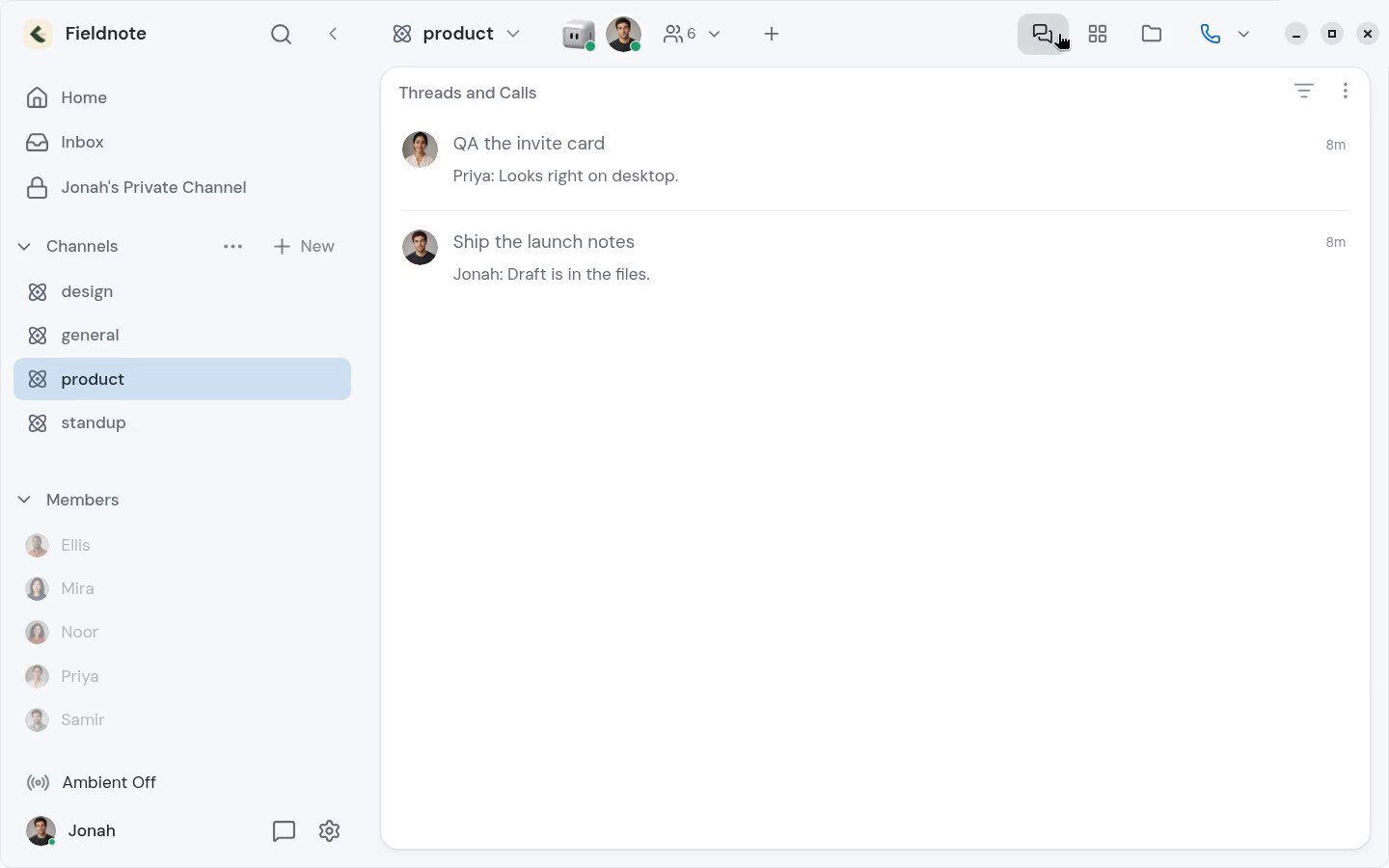
On desktop, a Channel no longer has a row of tabs or a column down the right side. The chat is the main view, and the bar above it holds everything else: the Channel's name, who is in it, and buttons for Threads, Apps and Files.
Each button opens its view in a single pane next to the chat. The Threads button shows a count of threads with work running or unread replies, so you can see at a glance whether anything needs you.
How it works
- Open a Channel. The top bar sits above the chat.
- Click the Threads button to see the Channel's threads and Calls. Pick one and it opens in the same pane.
- Click the Apps button to see the apps built for this Channel.
- Click the Files button to see the files the Channel shares.
- Click the pressed button again, or close the pane, to go back to the chat.
When the window is narrow, the pane covers the chat instead of sitting beside it. The chat stays where you left it underneath.
Why it matters
A Channel holds more than its messages: the threads that branch off, the apps the team uses, the files people share. Those used to sit in tabs and a side column that competed with the conversation. Now they are one click away, and the chat stays at the center.